Run it on your computer
This page takes you from the download button to a running simulation, one step at a time. The first time takes about ten minutes; after that, starting a run is a double-click.
- Download the code (one zip file).
- Unzip it and keep the folder in Documents.
- Double-click Start Lab: it installs what it needs and shows a menu of runs.
- Pick a run and watch it in the live window.
What you need
- A Mac, Windows or Linux computer. Any laptop from the last ten years is fine; 3D runs need about 15 minutes.
- Python 3.9 or newer. To check, open a terminal and type
python3 --version(Windows:py --version).
Open Terminal: press Cmd+Space, type Terminal, press Return. Type python3 --version and press Return.
- You see
Python 3.9or higher: you are ready. - You see command not found, an older version, or a window asking to install "command line developer tools":
install Python from python.org/downloads. Open the downloaded
.pkgfile and accept every default.
Install Python from python.org/downloads. In the first screen of the installer, tick "Add python.exe to PATH", then click Install Now.
Python 3 is usually installed already. You also need the Tk toolkit for the live window, for example
sudo apt install python3-venv python3-tk on Ubuntu.
You do not need to install numpy or matplotlib yourself: the lab does that the first time it starts.
Step 1: Download
Your browser saves the file in your Downloads folder.
- Safari unzips it for you: you will find a folder called
splmhdin Downloads. - Chrome, Firefox, Edge leave the file
splmhd.zipin Downloads.
Step 2: Unzip it and keep the folder in Documents
Your runs are saved inside this folder, so give it a permanent home rather than leaving it in Downloads.
- Open Finder and go to Downloads (Option+Cmd+L).
- If you see
splmhd.zip, double-click it. A foldersplmhdappears next to it. - Drag the
splmhdfolder to Documents in the Finder sidebar.
- Open File Explorer and go to Downloads.
- Right-click
splmhd.zip→ Extract All…. Change the destination to your Documents folder and click Extract.
cd ~/Documents
unzip ~/Downloads/splmhd.zip
You now have a folder Documents/splmhd that looks like this:
splmhd/
├── Start Lab.command   ← double-click this on a Mac
├── Start Lab.bat       ← double-click this on Windows
├── lab.py              the lab: menu, live window, plots
├── run.py              the solver's command line (the lab uses it)
├── splmhd/             the solver itself: grid, operators, physics, time stepping
├── tools/              monitor, plots, movies, 3D views, ParaView export
├── configs/            seven ready-made runs
└── README.md
Step 3: Start the lab
Double-click Start Lab.command. A Terminal window opens and the lab starts.
The first time only, macOS may block it with a message like "Start Lab.command" Not Opened: Apple could not verify…. This happens with any script downloaded from the internet. To allow it:
- Click Done.
- Open System Settings → Privacy & Security and scroll down to the Security section.
- Next to "Start Lab.command" was blocked, click Open Anyway and confirm with your password.
Or start it from Terminal instead, which macOS does not block:
cd ~/Documents/splmhd
bash "Start Lab.command"
Tip: instead of typing the folder name, type cd (with a space) and drag the splmhd folder from Finder
into the Terminal window.
Double-click Start Lab.bat. A black command window opens and the lab starts.
If Windows shows "Windows protected your PC", click More info → Run anyway. This happens only the first time.
cd ~/Documents/splmhd
bash "Start Lab.command"
The first start takes about a minute. The lab makes a private Python environment inside the folder
(splmhd/.venv) and installs numpy, matplotlib and plotly into it, so nothing else on your computer changes.
Every later start is immediate. When it is ready you see the menu:
──────────────────────────────────────────────────────────────────────────
  Pyakurel Plasma Lab  ·  splmhd resistive-MHD simulations
──────────────────────────────────────────────────────────────────────────
  Example runs                                                   time
   1  Alfvén wave: check the code against an exact answer          10 s
   2  Harris sheet: Sweet–Parker reconnection, jets, islands      4 min
   3  Magnetosphere: reconnection at a dipole's magnetic null     2 min
   4  3D Harris sheet: an X-line that starts in a patch          15 min
   5  3D magnetosphere, pushed on one range of longitude          8 min
   6  Advanced: current sheet in a gravitating corona             5 min
   7  Advanced: the same in 3D                                   15 min

  Type a number, drag a .json file here, or q to quit.
>
Step 4: Choose a run
Type a number and press Return. Start with 1: it takes ten seconds and checks that everything works. Then try 2, the reconnection run.
The lab shows the run's parameters and how long it will take on your computer:
  cartesian_2d_harris:  cartesian 2D, setup 'harris'
  grid       nx = 256   ny = 128   (256 × 128 cells)
  box        Lx = 25.6 (-12.8 to 12.8)   Ly = 12.8 (-6.4 to 6.4)
  physics    eta = 0.005   nu = 0.005   filter = 0.01
  setup      lam = 0.5   rho_inf = 0.2   beta_inf = 0.2   psi0 = 0.1   b_guide = 0.0
  time       t_end = 200   dt_output = 10   cfl = 0.4
──────────────────────────────────────────────────────────────────────────
  To change a value, type its name with a new value, e.g.  nx=128  Lx=40   (help: what each name means)
Estimating the run time (5 test steps)...
time step dt = 1.622e-02  ->  about 12,331 steps to t = 200
14.1 ms per step  ->  estimated run time 2.9 min (dt usually shrinks a little as flows speed up)

Press Return to start.  To change something type e.g.  eta=0.01  t_end=50  nx=128  Lx=40
(several at once are fine), 'help' for the list of names, 'b' to go back.
- Press Return to run it as it is. You do not have to change anything.
- Or change parameters first, several at once if you like, for example
eta=0.01 t_end=100. The lab shows the new estimate, and you press Return when you are happy. Every name printed in the summary is one you can type (nx = 256→nx=512), andhelplists them all with what they mean. - Type
showto see the initial state of the run as it is set up now (the field, the current, the plasma and the push), with what is going to happen. Nothing is run; close the window to come back. The names are the ones in the parameter tables on the Cartesian and Spherical pages;nx,ny,nz(ornr,ntheta,nphi) set the grid. - Box size:
Lx,Ly,Lzfor Cartesian runs (a box centred on the current sheet stays centred), andr_in,r_out,th_half(θ half-width in degrees) andph_extent(φ wedge in degrees, 3D) for spherical runs. The number of cells stays the same, so a bigger box means bigger cells: the lab shows the new cell size, and you can add cells in the same line, for exampleLx=51.2 nx=512.
Then answer Return (yes) to Open the live monitor?
Step 5: Watch it run
What the code does, step by step
Before looking at the windows, here is what happens inside the code while they update. The animation runs the solver on a deliberately coarse grid (14 × 8 cells) so that you can follow every cell; the numbers and colours are the solver's own. A real run does exactly the same on 256 × 128 cells, thousands of times. Pause the video whenever you like, drag back, slow it down, or jump straight to a step with the buttons underneath.
- Make the grid.
grid.pydivides the box into cells of size Δx × Δy. Every quantity (ρ, p, v, A) is stored at the centre of each cell. - Add ghost cells. Two extra layers surround the grid. A derivative at a cell uses its neighbours: B = ∇×A needs A one cell out, and J = ∇×B needs B one cell out, which needs A one more cell out. So at the edge the code needs two cells beyond the box.
- Put the initial state on the grid.
setups.pyfills every interior cell, here with the Harris sheet: dense, hot plasma along y = 0, opposite field above and below, and a small kick that pinches the field lines into an X-line. - Fill the ghost cells with the boundary rules (below): periodic in x, a wall in y.
- Choose the time step. A cell is updated from its neighbours only, so the fastest wave must not cross more than a fraction of a cell in one step, or errors grow until the run blows up (the CFL condition). So Δt follows from the fast speed and the cell size, in the cell where that crossing time is shortest.
- Evaluate the equations in every cell. With differences over the neighbours, the code computes how fast ρ, v, p and A are changing in each cell: the right-hand side. At t = 0 only resistivity changes A, and the bent field lines leave a net force that sets the plasma moving.
- Advance one time step with three Runge–Kutta stages: a trial step to the end, one back to the middle, and the real step with the average slope from all three (Simpson's rule). A single Euler step would blow up for waves. The ghost cells are refilled after each stage; then the diagnostics and, now and then, a snapshot.
- Repeat from step 5 until t = t_end. That is when the X-line drains the current sheet and the jets appear: what the windows below show.
Steps 5 and 7 have a video of their own: a signal that is too fast for the grid blows up, the CFL condition fixes it, and the three RK3 stages are drawn one by one (Time stepping, on the discretization page).
What goes into the ghost cells: the four boundary types
The rule that fills the ghost cells decides what the edge of the box means physically. Each side of each direction
has its own rule, set in the config file ("boundaries"). In the animation each bar is one cell; blue: interior,
orange: ghost values made by the rule; the thick lines are the boundary faces.
| Type | What the ghost cells get | Why, and where it is used |
|---|---|---|
| periodic | copies of the cells at the opposite end of the box | The box is one period of something much longer: what leaves on one side comes back on the other, and nothing reflects. Used along the Harris sheet (x), in z for 3D runs, in the Alfvén-wave test and around the axis (φ). |
| wall | the mirror image of the cells just inside: ρ, p and the velocity along the wall keep their sign; the velocity through the wall flips sign, so it is zero on the wall; A held at its initial value | A perfectly conducting, slippery wall: no plasma and no magnetic flux pass through it, but the plasma may slide along. A safe choice far from the action: y = ±L_y/2 in the Harris runs, the θ limits of spherical runs. |
| fixed | ρ, p and A held at their initial values; every velocity component sign-flipped, so v = 0 at the boundary | The field lines are anchored ("line-tied") in a surface much denser than the plasma, such as a planet's ionosphere or the Sun's photosphere. Their footpoints cannot move, and a gravitating atmosphere keeps the balance it started with. Used at the inner and outer radius of spherical runs. |
| open | the edge value copied (zero gradient); A extrapolated in a straight line | Let outflows and waves leave instead of bouncing back. Good for jets leaving the box, but not perfectly transparent: some of a wave is reflected. |
Why do some quantities flip sign at a wall and others not?
Think of the wall as a mirror, and the ghost cells as what you see in it.
- ρ and p are plain numbers with no direction: the mirror shows the same number (even, same sign).
- The velocity along the wall looks the same in a mirror (even).
- The velocity through the wall points into the wall; in the mirror it comes back out (odd, sign flipped), just as a ball bouncing off a wall reverses only that part of its velocity.
The wall sits on the cell face, halfway between the last cell and its ghost, so the value on the wall is their average. Flipping the sign makes that average zero: no plasma goes through. Keeping the sign makes the slope across the wall zero: no pressure push through it, no friction along it, so the plasma can slide. A is not mirrored at all: it is held fixed, because a perfect conductor has no electric field along it and ∂A/∂t = −E. A fixed boundary flips both velocity parts, so the plasma cannot slide either.
The live windows
Five windows open beside the terminal and update as the code runs: one for the run itself and one each for the magnetic field, the current, the flow and the plasma. They refresh when the solver writes diagnostics or a snapshot, not every time step, so they do not slow the run down. All four field windows always show the same snapshot.
The windows may open on top of each other. Use the Magnetic, Current, Flow, Plasma buttons in the Run window to bring one to the front, and arrange them however you like. On Windows and Linux they are tiled for you: the field windows across the top of the screen, the Run window along the bottom.
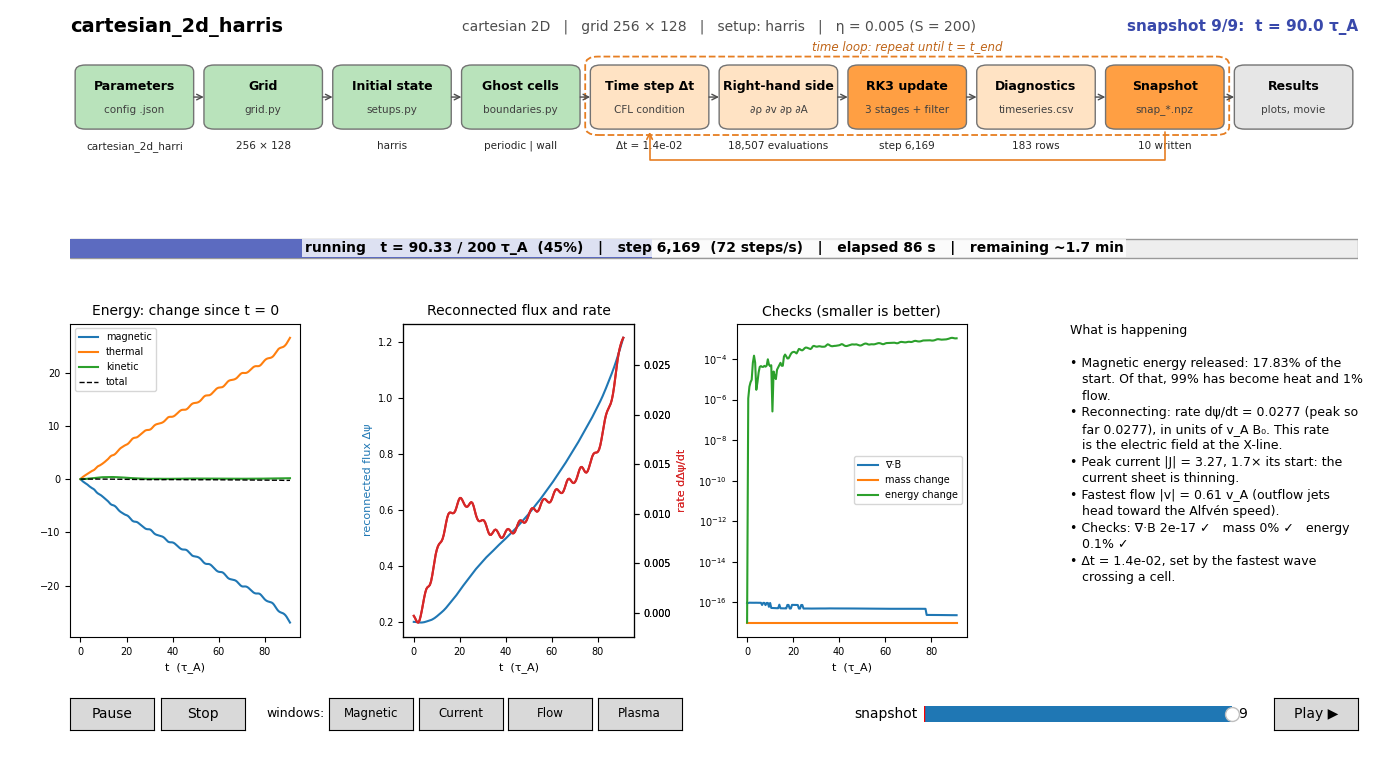
| Part of the window | What it shows |
|---|---|
| Top row: the algorithm | The stages of the code (chart below). Green: done; orange: the time loop running; the highlighted box is the stage the code is in. The numbers underneath count steps, right-hand-side evaluations, diagnostics rows and snapshots. |
| Progress bar | Simulation time reached, steps per second, time elapsed and time left. |
| Energy | How much magnetic, thermal and kinetic energy has changed since the start. Reconnection turns the blue curve down and the orange one up. |
| Reconnected flux and rate | Δψ, the flux that has passed through the X-line (blue), and its rate of change (red), the reconnection rate. |
| Checks | ∇·B (stays near 10⁻¹⁶), and how well mass and energy are conserved. If these grow, the run is in trouble. |
| What is happening | The same numbers in words: where the energy went, whether reconnection is speeding up or slowing down, which limit sets the time step. |
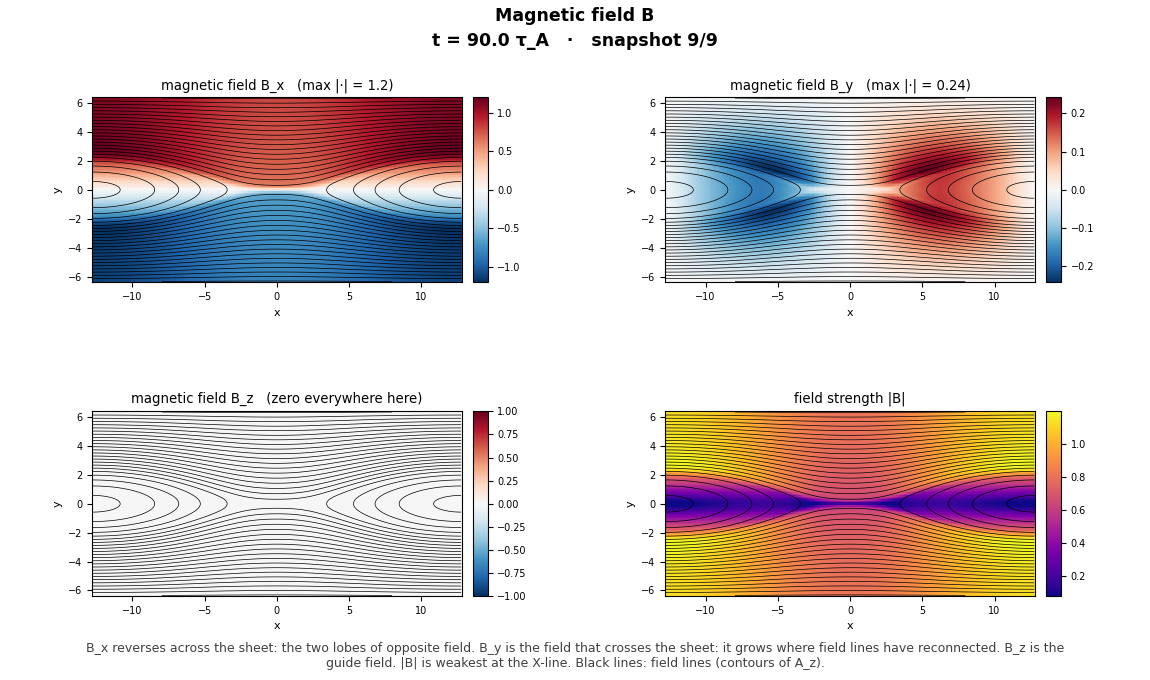
\(B_x\), \(B_y\), \(B_z\) and the field strength \(\lvert\mathbf{B}\rvert\), with field lines in black. \(B_x\) reverses across the sheet: the two lobes of opposite field. \(B_y\) is the field that crosses the sheet; it grows as field lines reconnect. \(\lvert\mathbf{B}\rvert\) is weakest at the X-line. Each title gives the largest value, or says zero everywhere here (for example \(B_z\) when there is no guide field).
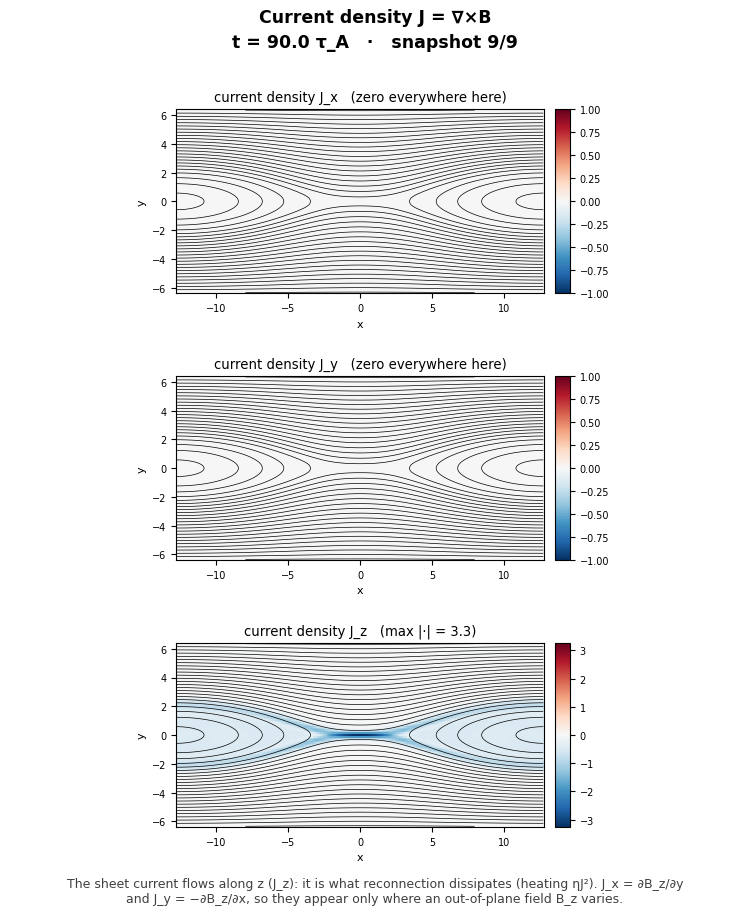
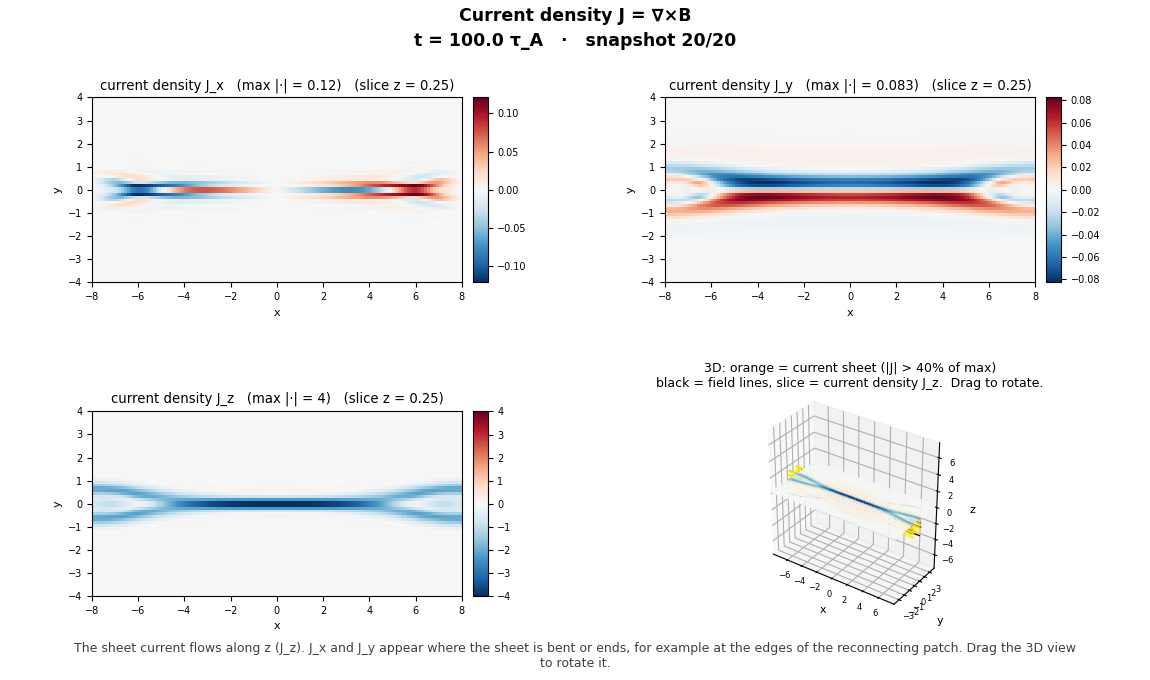
The three components of \(\mathbf{J} = \nabla\times\mathbf{B}\). In 2D the sheet current flows along \(z\); \(J_x\) and \(J_y\) are zero unless there is an out-of-plane field \(B_z\) that varies (\(J_x = \partial B_z/\partial y\)). Where \(J_z\) is strongest, resistivity turns magnetic energy into heat, \(\eta J^2\).
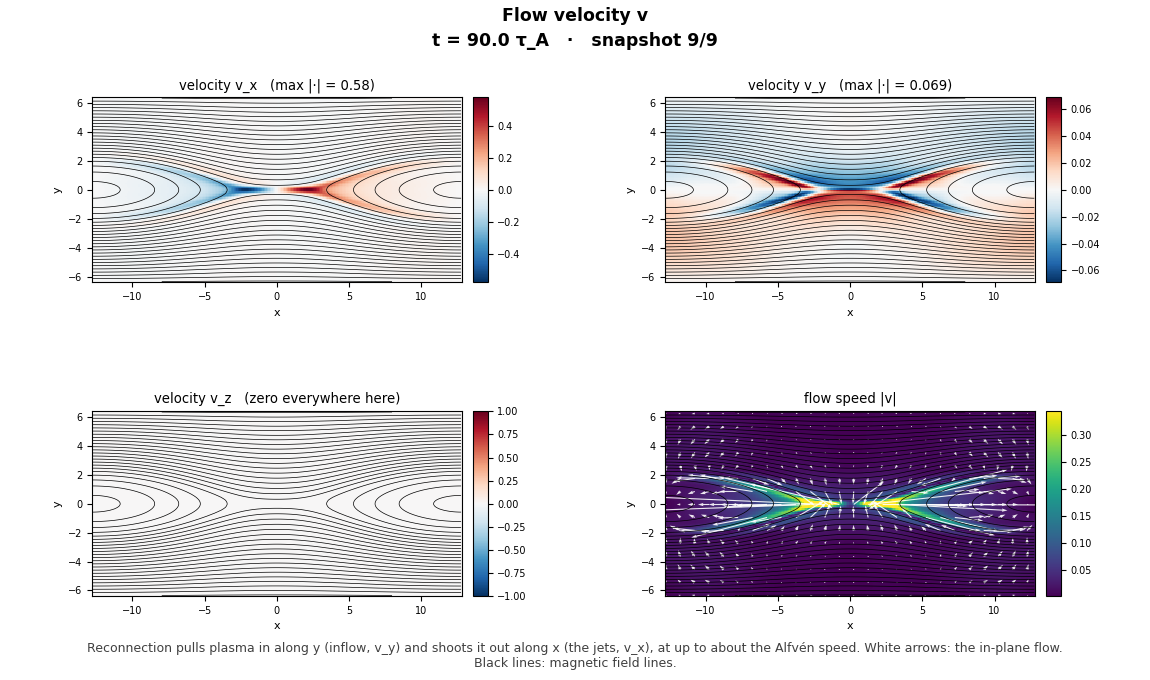
\(v_x\), \(v_y\), \(v_z\) and the flow speed \(\lvert\mathbf{v}\rvert\) with white flow arrows. Near the X-line plasma flows in along \(y\) (blue above the sheet, red below: toward it) and out along \(x\) in two jets: the reconnection outflow.
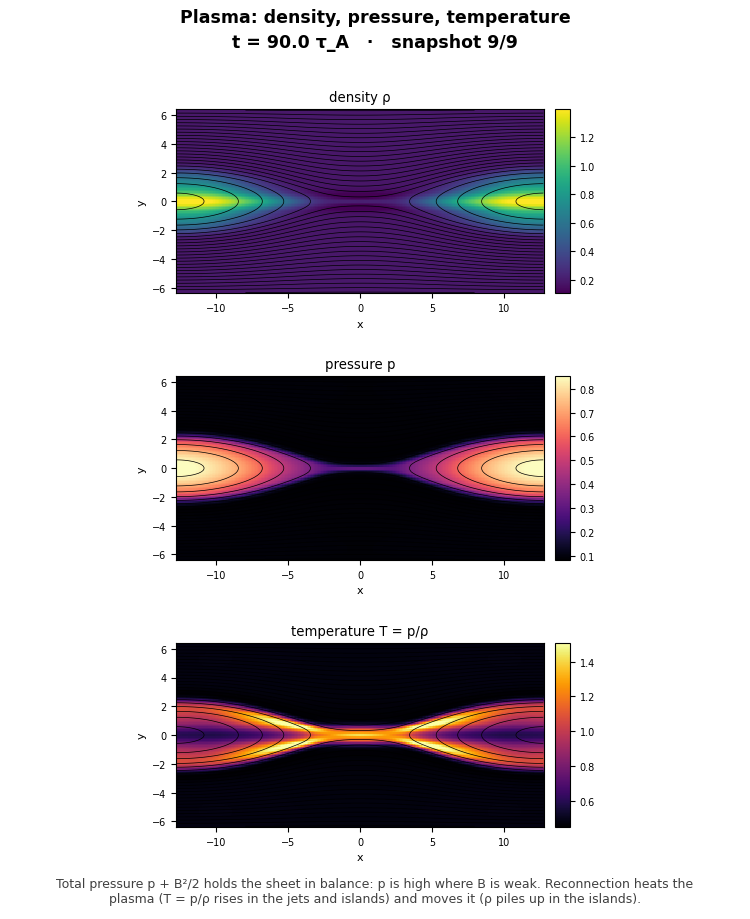
Density, pressure and temperature. The pressure is high where the field is weak, so that \(p + B^2/2\) balances. Reconnection heats the plasma: \(T\) rises in the jets and in the islands where the outflow piles up.
The buttons along the bottom of the Run window:
- Pause / Resume freezes the solver, for example while you look at a picture.
- Stop ends the run early. The solver saves its last state first, so you can continue later; the lab tells you how.
- Magnetic, Current, Flow, Plasma bring that window to the front, or open it again if you closed it.
- snapshot slider and Play ▶ go back through the snapshots already written, in all windows at once, while the run continues.
When the run finishes, the lab makes the standard pictures (every field, the energy budget, a movie, and a picture of each
monitor window) and opens the folder output/<run name>/plots/. The monitor stays open: drag the slider or press
Play ▶ to replay the run. Close the Run window to go back to the menu.
To look at a finished run again later, start the lab and choose it under Look at an earlier run again.
3D runs: slices, a 3D view and ParaView
For a 3D run the field windows show a slice through the middle of the box, normal to \(z\) at first. The slice button in the Run window switches to the middle \(y\) plane (the \(x\)–\(z\) plane of the sheet, where you see how far along \(z\) the X-line reaches) and then to the middle \(x\) plane. The Current window gets a fourth panel: a 3D view you can drag to rotate, showing the current sheet (orange), field lines (black) and a slice of \(J_z\).
For a better 3D view, install ParaView (free; on a Mac drag it into Applications). The lab then asks Also open ParaView beside it?. Answer yes and, once the first snapshot is written, ParaView opens with a ready-made scene: a slice coloured by \(\lvert\mathbf{J}\rvert\), an isosurface of the current sheet, and magnetic field lines through it. To bring in the newest snapshots, choose File → Reload Files → Find new files in ParaView and press ▶.
After a 3D run the lab also makes an interactive 3D page and opens it in your browser (view3d).
Your own parameters from this website
The parameter builders on the Cartesian and Spherical pages check your choices and estimate the run time before you run anything. Press Download config file: the file goes to your Downloads folder. The lab finds it there by itself. Start the lab and your file is listed under Your configs:
  Your configs (from the website builder, my_configs/ or this folder)
   8  my_harris_run.json                           in Downloads
You can also drag any config file into the terminal window when the menu asks for a number.
Every config you run is saved in splmhd/my_configs/, so you can run it again or share it.
How the code works
Each run follows the same tree: the config file sets up the grid, the initial state and the boundaries once; then the time loop advances four equations again and again, writing diagnostics and snapshots on the way. Click any box to read how that part is done. The pages for each geometry show the chart with the details of their runs.
| Geometry | 2D | 3D |
|---|---|---|
| Cartesian | chart | chart (3D tab) |
| Spherical | chart | chart (3D tab) |
Every time after the first
Double-click Start Lab and choose a run. That is all.
Something did not work
"python3: command not found", or a window offers to install developer tools (Mac). Python is not installed: install it from python.org and double-click Start Lab again.
"Installing numpy and matplotlib failed". The first start needs the internet. Connect and try again; the lab removes the half-made environment by itself.
No monitor window appears. On a Mac, look in the Dock for a Python rocket icon: the window may be behind
the browser. On Linux, install python3-tk. Without a window the run still works and prints its progress in the terminal.
The run stops with "the time step collapsed", or the monitor says FAILED. The parameters ask for more than the grid can resolve. Use the
builder's warnings, or try in this order: cfl=0.3, filter=0.02, larger eta and nu, more cells.
I want to stop a run from the terminal. Press Ctrl+C. The solver saves its last state first.
I want to start over. Delete the splmhd folder. Everything the lab made, including its Python
environment, is inside it.
I prefer typing commands. Everything the lab does can be done step by step: see
Visualizing the results and the README.md in the folder.